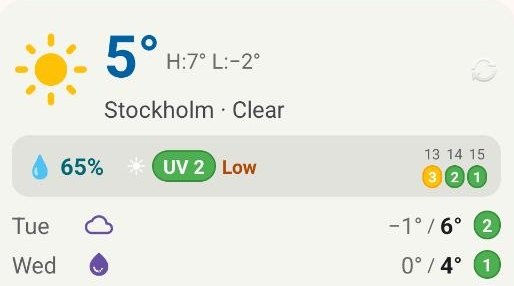
Small widget for fast current conditions
The small Weather widget is made for crowded home screens. It keeps the current temperature, condition, and essential forecast signal visible without taking over the page.
 Weather
Weather widgets for Android
A good weather widget should answer the next decision before you open the full app. Weather keeps current conditions, daily outlooks, humidity, and 3-hour UV peaks close to the Android home screen in layouts that stay readable at a glance.
Choosing a layout
The small Weather widget is made for crowded home screens. It keeps the current temperature, condition, and essential forecast signal visible without taking over the page.
The medium layout adds more of the details people usually check before leaving: humidity, the near-term forecast, and UV information. It is the balanced choice when you want more context without opening the app.
The large widget gives the weekly forecast more room. Use it when your home screen has space for current weather, highs and lows, and quick planning cues in one calm panel.
Forecast readability
Weather highlights the strongest UV value expected in each upcoming three-hour window. When the UV Index is 3 or higher, WHO guidance recommends combined protection: shade, clothing, a hat, sunglasses and sunscreen. Check current WHO guidance.
Humidity and daily highs and lows help explain how the forecast will actually feel. The widget keeps those signals close to the temperature so the screen stays useful without becoming noisy.
Use the widget for quick checks throughout the day. Open Weather when you want the full forecast screen, air details, a seven-day outlook, or a manual refresh before heading out.
Location and updates
Weather uses your allowed location to request local forecast data from Open-Meteo. If you do not grant location access, the app can still focus on the forecast information you choose to view.
Recent weather data is cached locally for limited-connectivity use, but cached information can be stale. Refresh before weather-sensitive decisions and follow official local warnings.
Automatic updates are designed to respect network and battery constraints, while manual refresh stays available when you want the latest forecast on demand.
Setup
Long-press an empty area of the home screen, open Widgets, find Weather and drag the size you want onto the screen. On some launchers, long-press the app icon and choose Widgets.
Long-press the widget and drag the handles to resize. Put it on your first home screen next to the apps you open before leaving the house, so the check happens without a decision.
Open the app once, check that location and background data are allowed, and exclude Weather from aggressive battery saving if your phone restricts it. Use manual refresh on the medium or large widget after being offline.
FAQ
Long press an empty area on your Android home screen, open the widgets menu, choose Weather, and place the size that fits your layout. Use the small widget for a compact current forecast, the medium widget for extra details, or the large widget for a broader outlook.
Weather highlights expected 3-hour UV peaks. WHO guidance recommends sun protection when the UV Index is 3 or higher; use shade, clothing, a hat, sunglasses and sunscreen together.
Weather can use an allowed location to request a forecast from Open-Meteo. Cached data may be stale, so refresh before weather-sensitive decisions and follow official local warnings.
Ready when you are
Install Weather for Android to keep calm widgets, local forecasts, and UV insight one glance away.
This content was generated with artificial intelligence. The independent developer is responsible for publication and accepts correction reports. Verify health, safety, legal, financial and official requirements with a primary source or qualified professional.
Questions and corrections: brightwaveapp@gmail.com. Legal and privacy information.